
In this task, you will use AI to expand your course design by sharing your course title, target audience, and the labels of your six sections, and asking for ideas on what Moodle resources to include and where to place them.
You will then add all relevant resources into your course sections on Moodle, making sure each resource prepares students before they move on to activities. Students will first engage with the resources and then complete the activities.
Finally, you will create a walkthrough video of your course resources using tools such as Colossyan, Filmora, or ScreenPal. You will upload the video to YouTube as unlisted or share it via Google Drive and post the link in the forum.
Instructions
- You now have labels for the 6 sections of your course.
- Go into Develop Online Courses and ask about each of the Moodle resources.
- Share your course title, the audience, and labels of the 6 sections with the bot. Ask the bot for ideas on what you can include in each of the resources and in which section to place them.
- Add all the resources available in your Moodle course within the sections, so that your students will be able to use them before doing the activities. Students will first view the resources, then do the activities. Make sure your resources clearly prepare students for this process.
- Create a walkthrough video using Colossyan, Filmora 15, or ScreenPal to take us on a tour of your resources.
- Upload the video to YouTube and share as unlisted, and paste the link or upload to Google drive, go into share and make unrestricted and viewable by anyone who has the link, copy the link and paste the link of the video.
Use the following Moodle resources:
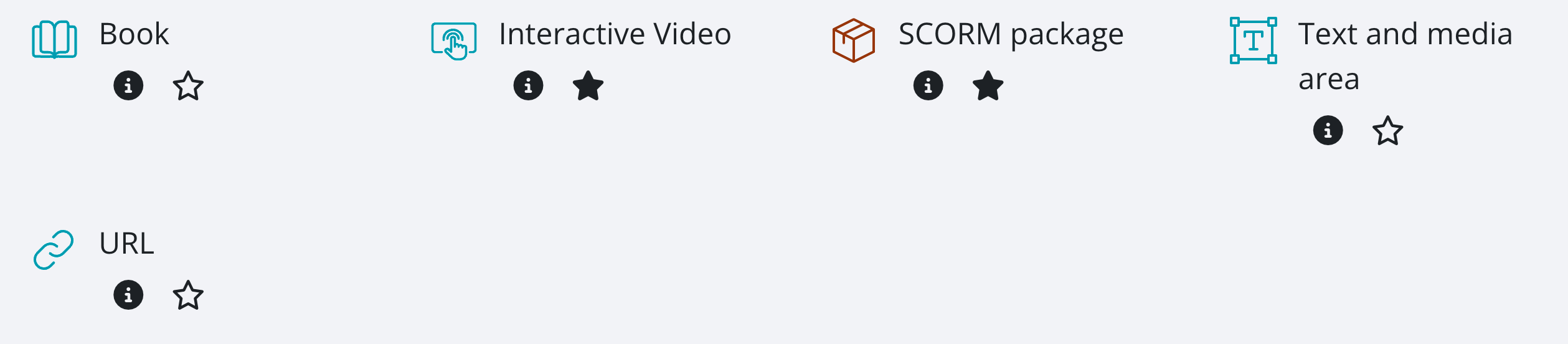
- Book (try it out if you can)
- Interactive Video (use Enter.Pro)
- SCORM package (use Colossyan)
- Text and media area (use this for a YouTube video)
- URL (add a link)
Conditions
- All the resources must be set to “Student must view” under "Completion conditions" in the settings.
- Each resource must include a short instruction or explanation (but do not tick to display)

- Each resource must have a clear purpose related to the topic or label you added. You can change the label if necessary.
- Resources must be placed in a logical order. You can reorder them by dragging them up and down or by going into move in the settings.
- Resources must prepare students to do the activities that will be based on them
Completion requirements:
- Receive a grade
- Receive a passing grade